
X4 Xteink
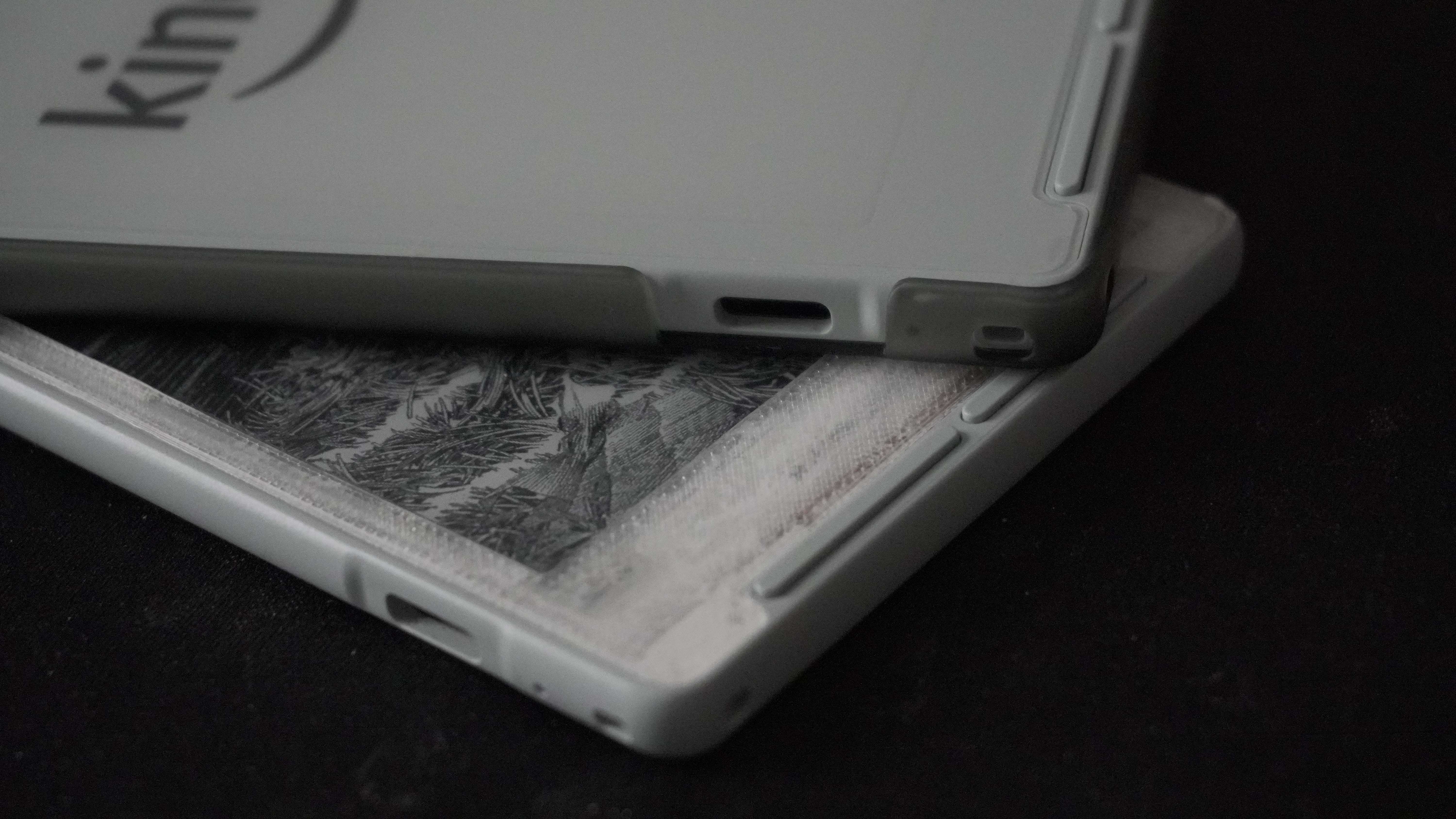
This post is going to be similar to the iPod one, but about the Xteink X4, more hardware-focused and aimed at whoever’s looking to fix their screen. The X4 is a bit more niche, so let me give you some context first. The Xteink X4 is a mini e-ink reader, think Kindle, but what really sets it apart is the size. It’s tiny. But size isn’t its only selling point; it’s also ridiculously cheap. You can get it on AliExpress for $65. Part of why it’s so cheap is because it’s Chinese-made, and if you’re still living in the past, let me tell you that’s not a synonym for bad. Quite the opposite. The X4’s hardware is pretty straightforward: an ESP32-C3 Series, a lithium battery (1200 mAh) that lasts weeks, WiFi, Bluetooth, and a fairly standard 4.2-inch e-ink panel (400x300) you can also grab on AliExpress for around $18.
I want one. Now what?
Before anything, let me be clear: this compact device isn’t for everyone. If you’re the kind of person who needs an app store, a movie platform, a curated music library, a built-in bookstore, this probably isn’t for you. Mainly because it only reads .epub, internet connectivity is basically nonexistent, and the interface is a disaster. Well, none of those three things are entirely true; let’s get into it.
The X4 can handle .epub, but also .txt and .xtc; you just need to get the files somehow. I’d point you to Anna’s Archive or some Telegram bot, I’ve heard that’s where pirates hide their treasure. To load them you’ll need a Micro SD card reader and a PC. Here lies the second lie, because you can also do it over WiFi. The problem is the connection is usually terrible, you’ll have to type your password through a horrible interface, and you’ll need to know the IP your router assigned to the device. Last but not least, the interface: the stock OS comes entirely in Chinese by default and it is barely usable, buttons are confusing and it does not have a touch screen.
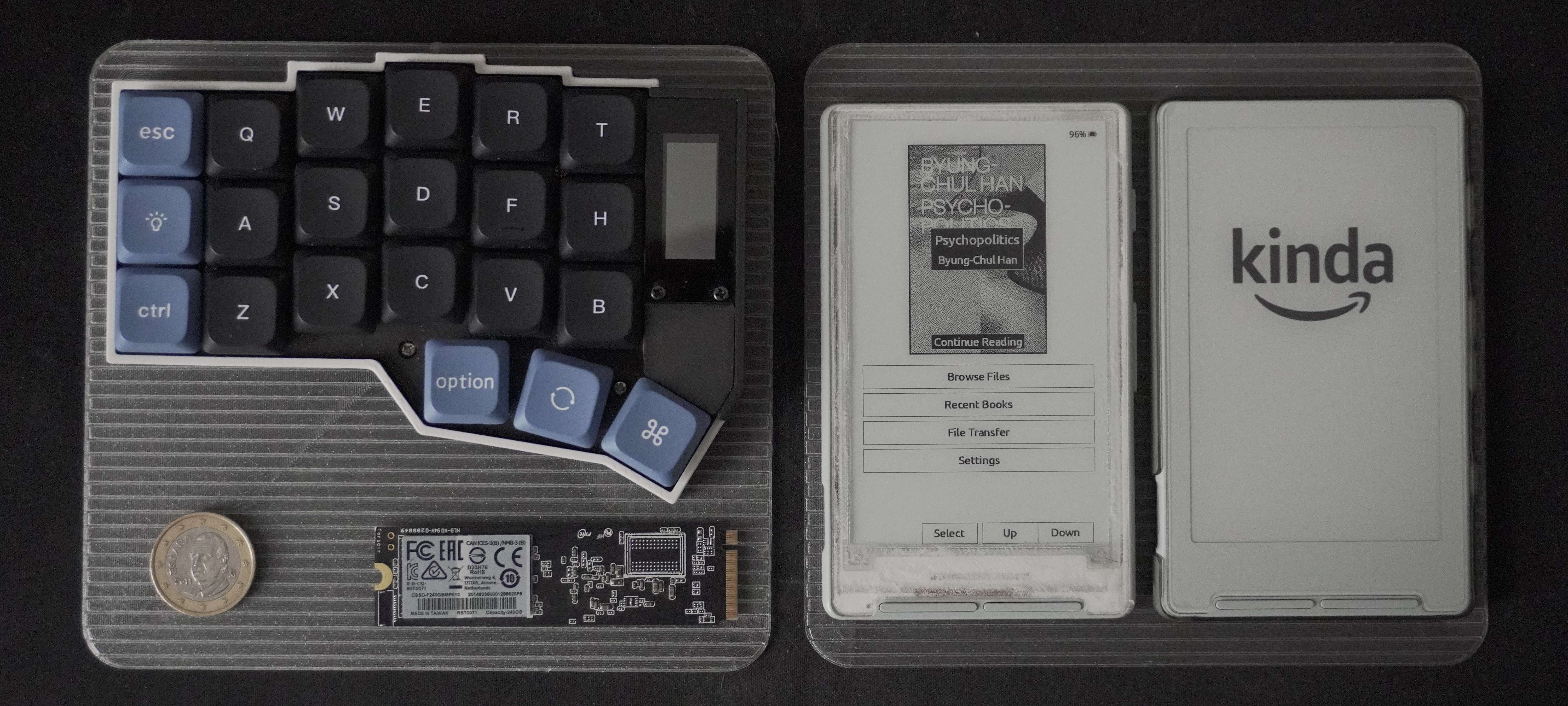
Since the hardware is open, the moment the X4 hit the market, people immediately started vibecoding a ridiculous number of operating systems, most of them using PlatformIO. If you don’t know what vibecoding is: it’s when one or several people who can’t read or write code, with absolutely no ethical qualms, describe the software they’d like to have to an oracle, which basically just throws shit at a wall until something comes out looking like a Pollock. Turns out the oracle is pretty good at throwing shit, and now the Pollocks are everywhere. For the X4 alone I’ve seen at least 5 different operating systems, some with multiple forks, and the problem is that unlike a Pollock, they’re not finished; after being vibecoded, they need maintenance. Something the vibecoder is completely indifferent to (-5 tokens for the vibecoder). Rant over.
Of the options out there, the one that actually works well is Crosspoint; they’re on version 1.2.0 and I’ve been using it since at least 0.5.X, if I remember right. Updates are stable, features are minimal, but it works. Given we’re talking Firmware here, it’s completely valid to install Crosspoint and never update it again (+5 tokens for the vibecoder). Remember you bought this little gadget to read, not to emulate Game Boy games. Before I get into the screen replacement stuff, here are some links I’m sure you’ll find useful:
- reddit.com/r/xteinkereader/
- readme.club
- AliExpress -> Buying through AliExpress is infinitely faster than through their site.
- EPUB to XTC Converter
- Image to BMP Converter
- PDF/CBZ/CBR to XTC
Fixing the screen
I managed to break both glass panels: the back one shattered when I dropped it on the cold streets of Madrid, and the front screen I stepped on half-asleep on my way to the bathroom. The back was dealt with by buying a case and slapping a screen protector to keep the pieces together. For the front screen you’ve got 3 options: buy the original, buy the generic one (link), which is what I did, or just buy a new X4. The last one is the most sensible option, but the most boring. Here are a few people in the same situation → Post 1, Post 2, Post 3
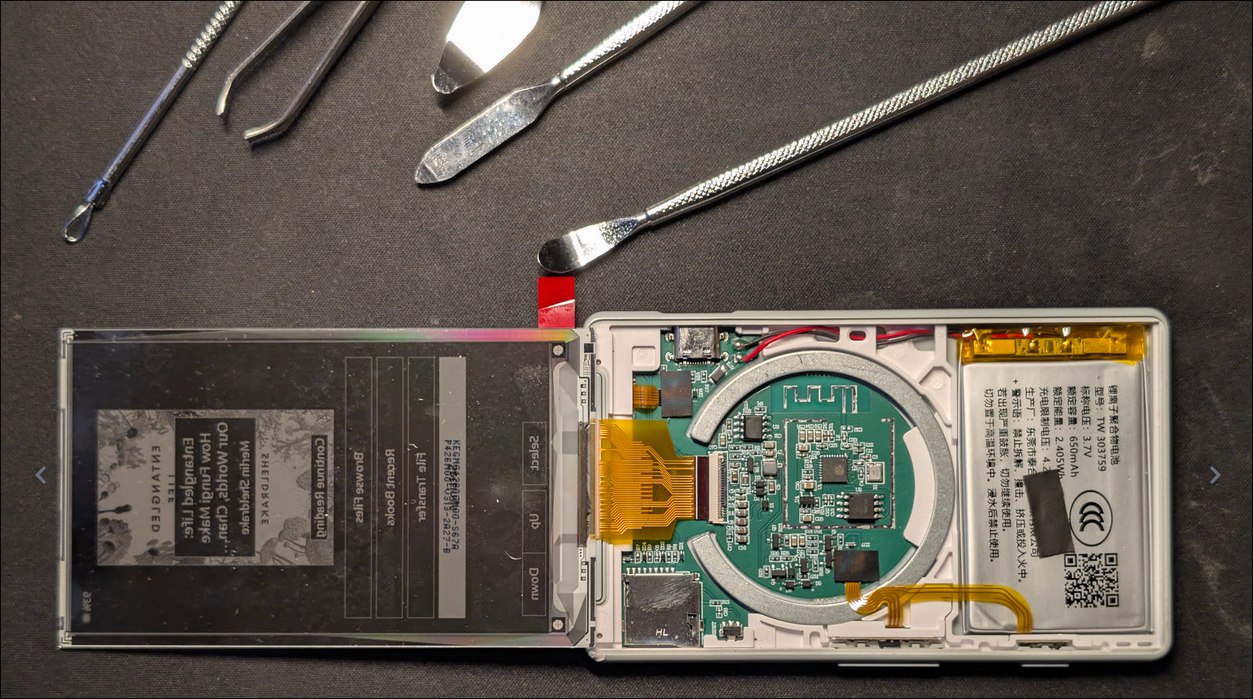
Whichever screen you go with, you’ll need to disassemble the broken one first; it’s pretty easy. From the front, you can pry the whole screen assembly off with any thin tool or blade; heating it up helps. I don’t have a heat gun, so I warmed it up on the print bed of my 3D printer. Don’t go making fried eggs though. The trickiest part is probably the flex cable. Unlike what ChatCCP told me, this flex doesn’t have a latch, which many others do. This one’s friction fit. What I did was press my finger on the flex against the PCB to keep it from bending, while pulling in/out to remove or reseat it. Putting it back is harder than taking it out. Take photos of everything before you start; you’ll want to know how far in the flex is supposed to sit in the socket.
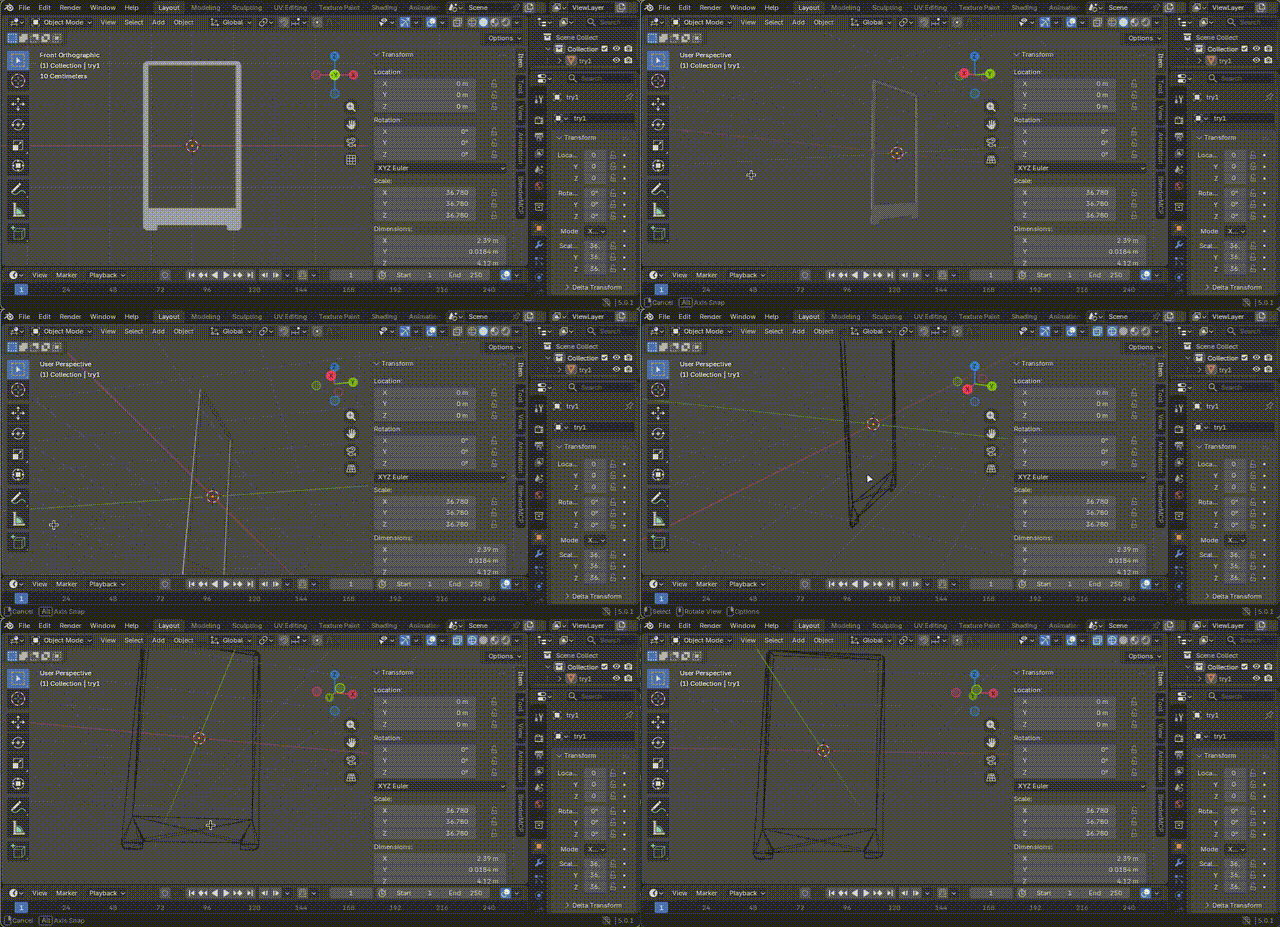
If you go with the generic screen, you’ll notice it doesn’t come with the bezel the X4 needs. Getting it off the broken screen is practically impossible; you need more heat and even more patience. You could just glue the screen to the battery and use it as-is, but it looks bad and it’s going to break again. What I did instead was design and print the bezel myself, then glue it onto the screen. It came out pretty good, not perfect. My Blender skills are hit or miss depending on the model, but I think I landed on something decent. Leaving the .stl here in case you ever end up in the same spot → x4_screen_border.stl