
Mac setup (Part 0)
VPNs, SSH reverse tunnels, Syngergy -> Barrier -> Input Leap, KVMs. I’ve dodged using the Mac for nearly eight years, but now I have to give in.
WARNING: This post might seem obvious to many macOS users.
Coming from the Linux world of personal computers and having used tiling windows managers for a while now, I always struggle with using Mac OS at work. I don’t like it a single bit. I hate inability of solving problems, the lack of customization and control you have over the OS. But if there’s one thing that I hate the most is the fact that, as an user, one must forfeit to Apple’s concept of what a good UX is and not the other way around. Having the chance to bring the UX closer to the individual, while maintaining a usable software for the herd, is something they just don’t care and I don’t blame them. Nevertheless, there are some things I have done to try to make my experience better.
The windows
Even if not really tiling, windows can be arranged side by side using only your keyboard with a third party app. There are a bunch of applications: Yabai, Raycast, Rectangle, etc. I’m currently using Rectangle since it just does windows arrangements using native floating windows and you can also set up key combinations to achieve this.
Moving through desktops can be both configured under the Mission Control settings (Settings > Keyboard > Keybaord Shortcuts > Missions Control), but it’s limited to 4 Desktops. Cycling through Desktops (workspaces) keybindings can also be changed from here.
Changing focus is somethings that I have gave up to do with the keyboard. There are some commands and binaries you can install to achieve a somewhat decent experience, but as Žižek says, I would prefer not to. I just pick up the mouse and CLICK the window, since putting the cursor over won’t focus on it (something that I have also resign to set up). I’m okay with switching focus within the active and last-active window, a shortcut for this can be set up on Settings > Keyboard > Keybaord Shortcuts > Keyboard.
The Cmd/Ctrl inferno
Among all the lack of standards and custom keys the Mac OS has, the thing that bothers me the most here is the Copy/Paste/Cut that I’m used to do with Ctrl + C, Ctrl + V and Ctrl + X. In Mac one would have to switch the Ctrl key for the Cmd key for many things, BUT NOT FOR EVERYTHING. For this, I have found that OS X let’s you override keyboard shortcuts. This also works to override more than one keyboard shortcut that is set to the Command key rather than the Control key.
To access, navigate to Settings > Keyboard > Keybaord Shortcuts > App Shortcuts
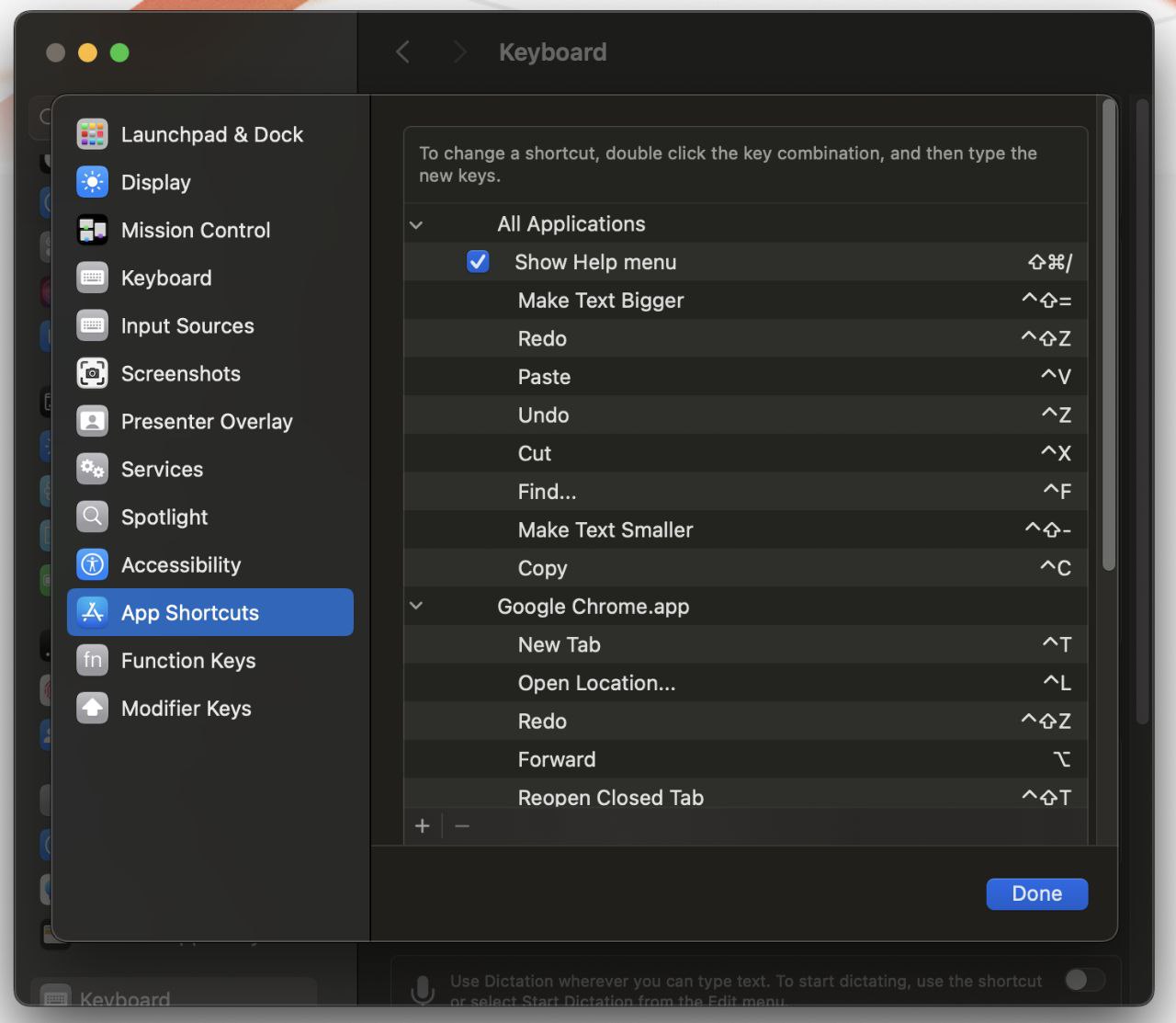
Shortcuts can be override for All Applications or for custom applications.
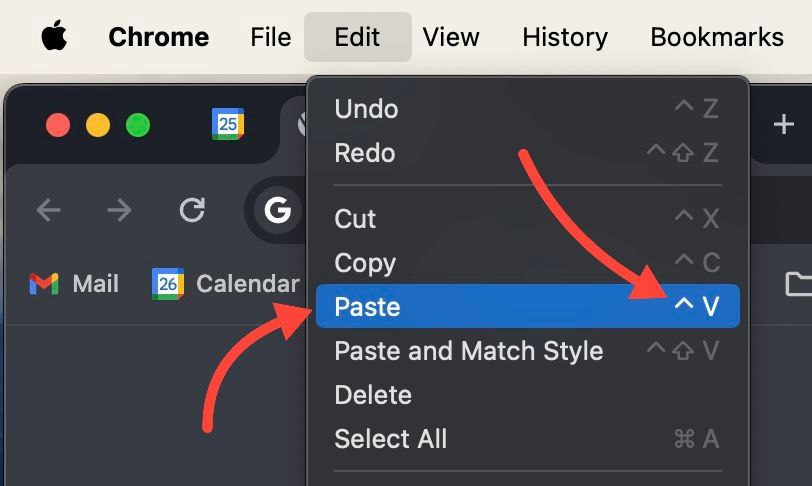
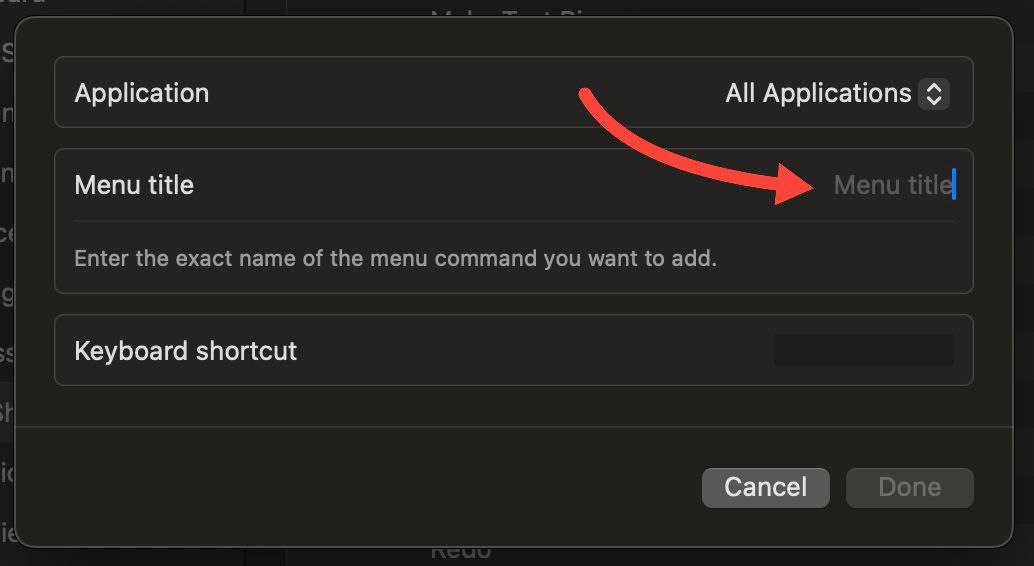
The “Menu Title” refers to Mac’s menu name displayed at the top bar for each windows.
For instance, “Paste” would be the name of our Menu Title and the ^V means that I have remapped this to Ctrl + V.
 |
 |
Bare in mind that these Menu Titles might change with updates from each application and you should always.
Here’s a list of some keyboard shortcuts I have set up:
| Menu Title | Combination | Application | Description |
|---|---|---|---|
| Paste | Ctrl+V | All Applicationws | Paste |
| Cut | Ctrl+X | All Applications | Cut |
| Copy | Ctrl+C | All Applications | Copy |
| New Tab | Ctrl+T | Chrome | Opens a new Tab |
| Close Tab | Ctrl+W | Chrome | Closes a new Tab |
| Reload This Page | Ctrl+W | Chrome | Reloads Page |
| Find… | Ctrl+F | Chrome | Reloads Page |
| Paste | Ctrl+Shift+V | iTerm | Paste on terminal |
| Open Location… | Ctrl+L | Chrome | Cursor to the URL bar |
| … | … | … | … |
Additionally, changing things like Taking screenshots and Spotlight can be achieve in the same settings: Settings > Keyboard > Keybaord Shortcuts > ...
Brew
There are some discussions on weather Brew is good or bad. In my case, I had better experiences with other package managers but I’ve never really had the motivation to learn it properly. However, for many tasks, Mac Ports has caused me less issues.
Navigating through text (soon..)
I haven’t quite solved this yet, but once I do, I’ll write a second part of this post. However, I do have an idea on how to tackle it.
Skipping through words is something i do a lot both for moving the cursor around or selecting chunks of sentences. I use Ctrl + Left/Right but on OS X it’s default is Option + Left/Right.This shortcut can be overridden in iTerm, for example, but not system-wide. Unfortunately, other key combinations such as Ctrl + A for selecting all text under the cursor, are also done using the Option key. I have found that functions as such are mapped to send escape sequence like ^[[1;5D. Luckily I have a qmk compatible keyboard that lets me send escape characters for a determine key combination, I’m trying to achieve a seamless experiences regardless of the OS you are using, but I’m not there yet.
Terminal and Neovim
Soon..